Office Wi-Fi Page
The Office Wi-Fi page is where you get office Wi-Fi network information for yourself and staff. An office Wi-Fi network is a part of the property-wide network that you can use for devices like office printers, as well as your personal devices. Use the shared password (Property-Wide Office PSK) for office devices and your individual password (My Office PSK) for personal devices. Whether the personal devices can connect to office devices depends on what the property owner wants at setup.
Note that employee users can only see their own office password/PSK (My Office PSK), the rest of these docs are not applicable if you are an employee.
Get Wi-Fi Password Info
Most of the Office Wi-Fi page shows network information. The information available is different depending on your account role. See Property Staff Authorization Guide for more information.
Property SSIDs
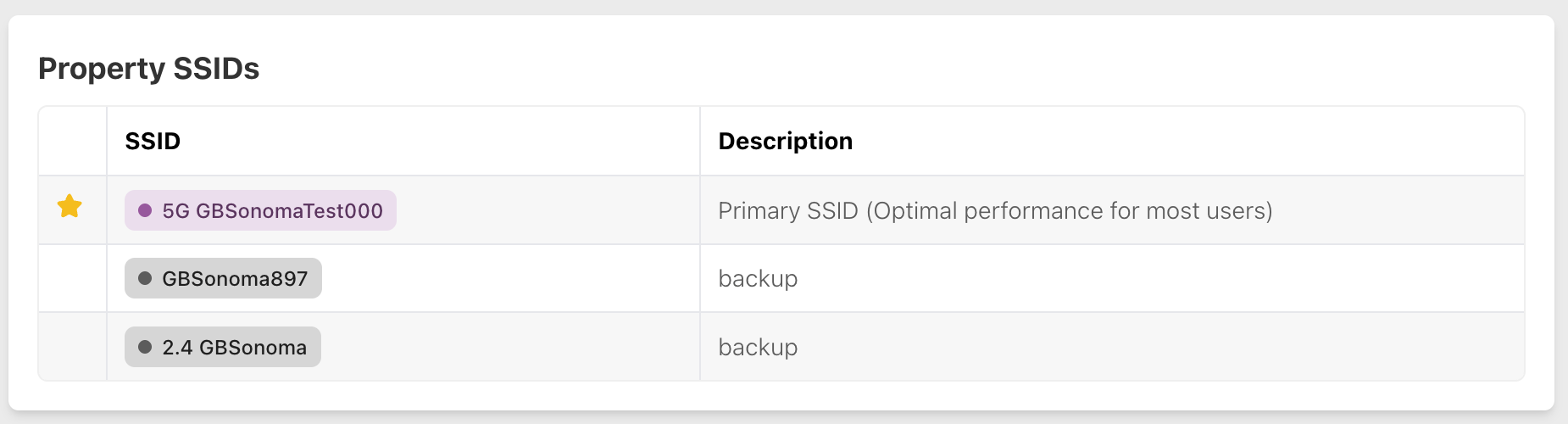
Multiple Wi-Fi networks may be available at your property. The Property SSIDs table shows the SSID (name) and description of each Wi-Fi network.
Property-Wide Office PSK
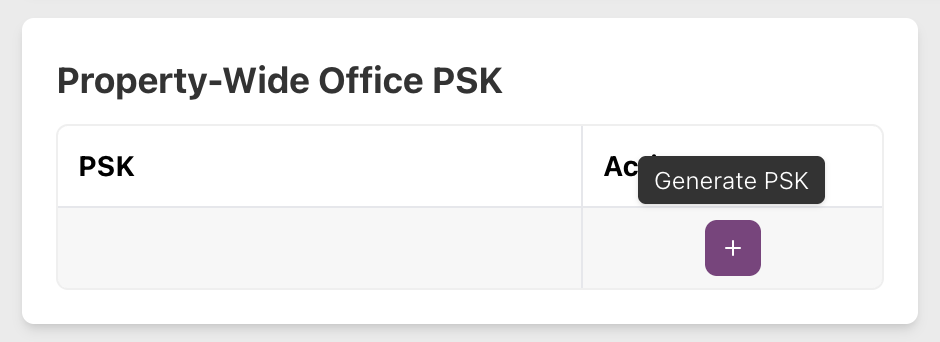
Property-Wide Office PSK is a password that the devices in the office can use to connect to the office Wi-Fi. Click the + icon (Generate PSK) to generate this password.
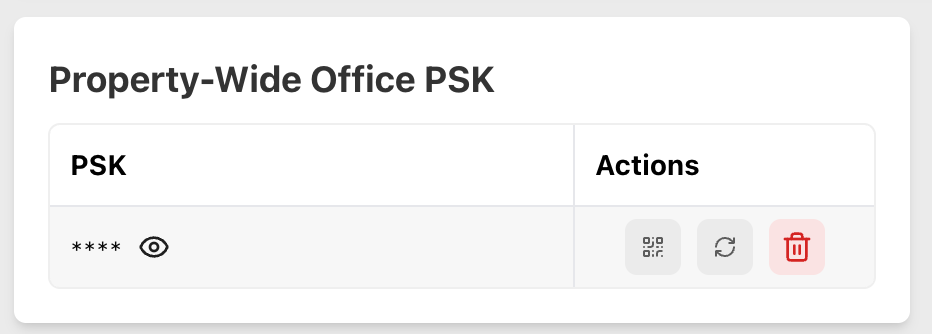
After generating a Wi-Fi password, click the QR code icon (View QR Code) to reveal a QR code that you can print for employees that connects to the Wi-Fi. Click the cycle icon (Refresh) to generate another password, or click the trash can icon (Delete) to delete it entirely.
Refreshing or deleting it will disconnect all devices using that password, so be careful.
My Office PSK
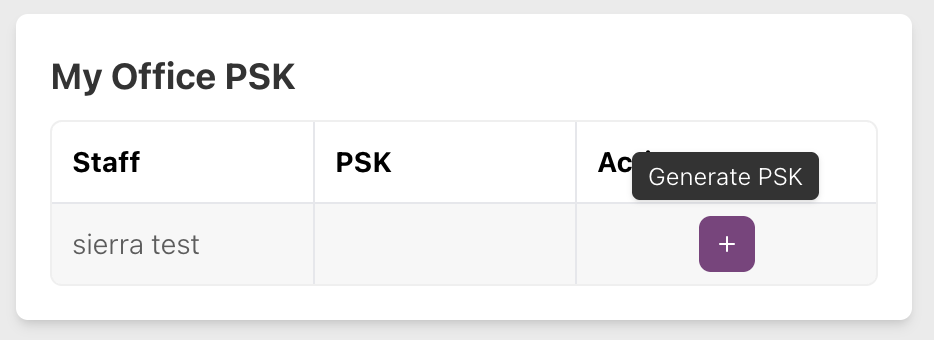
Your individual Office Wi-Fi password is available to copy in the My Office PSK section. Click the + icon (Generate PSK) to generate a password for yourself. Use this password for your personal devices, and do not share it.
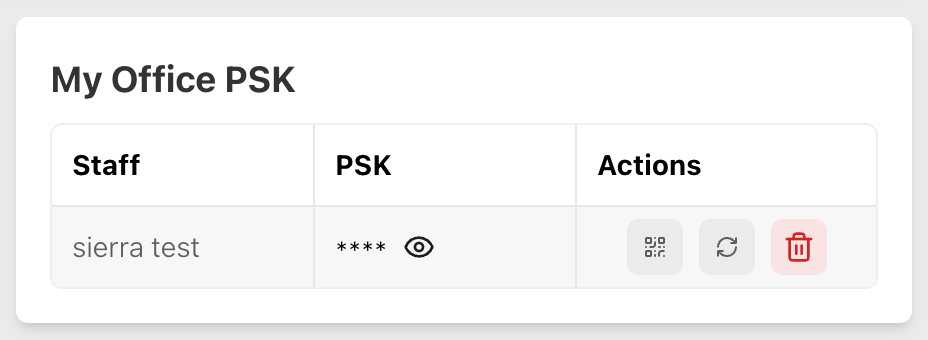
After generating a Wi-Fi password, click the eye icon to reveal it. Click the QR code icon (View QR Code) to reveal a QR code that connects you to the Wi-Fi. Click the cycle icon (Refresh) to generate another password, or click the trash can icon (Delete) to delete it entirely.
Refreshing or deleting it will disconnect all devices using that password, so be careful.
All Staff PSKs
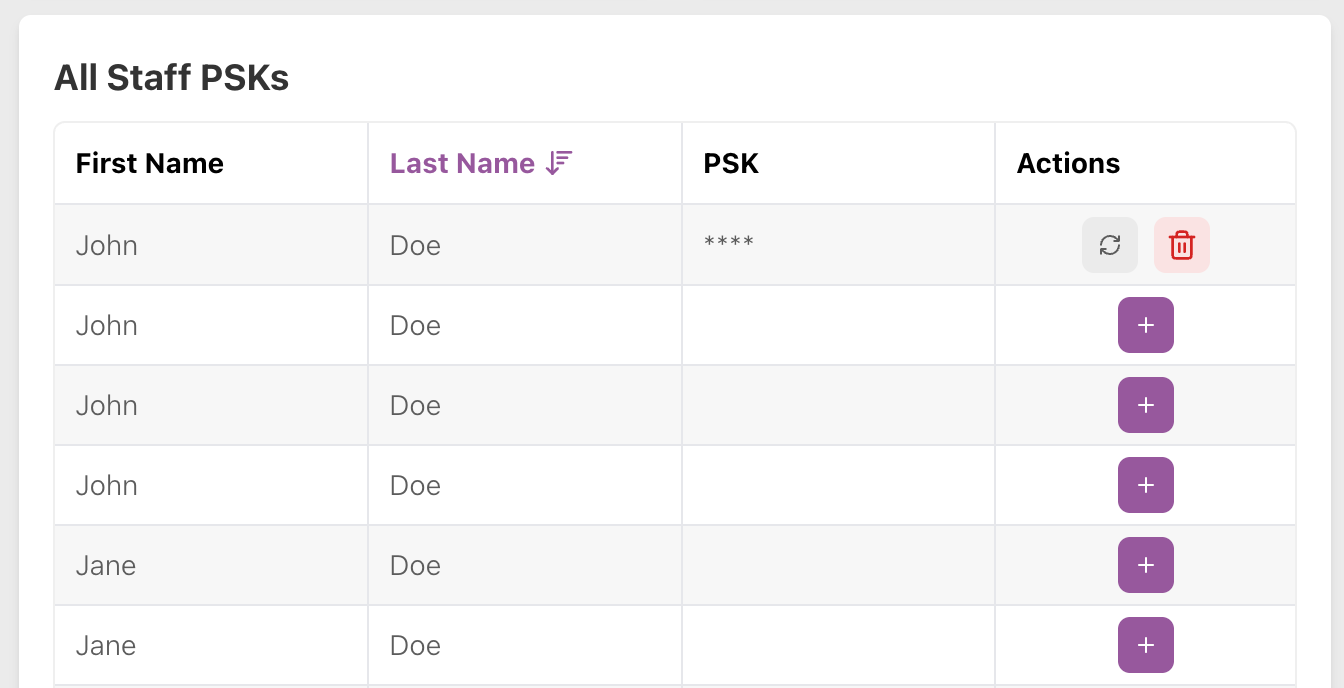
Staff PSKs are the individual passwords your staff use to connect to the network.
You cannot see these, but you can click the + (Generate PSK) icon to create a new password for a staff member that doesn’t have one yet. This password is emailed to the staff member.
Click the cycle icon (Refresh) to generate another password, which is emailed to the staff member, or click the trash can icon (Delete) to delete it entirely. Refreshing or deleting the password will disconnect all devices using that password, so be careful.
To add a staff member, use the Staff Accounts page on My Properties.
Edit PSK Generation Settings
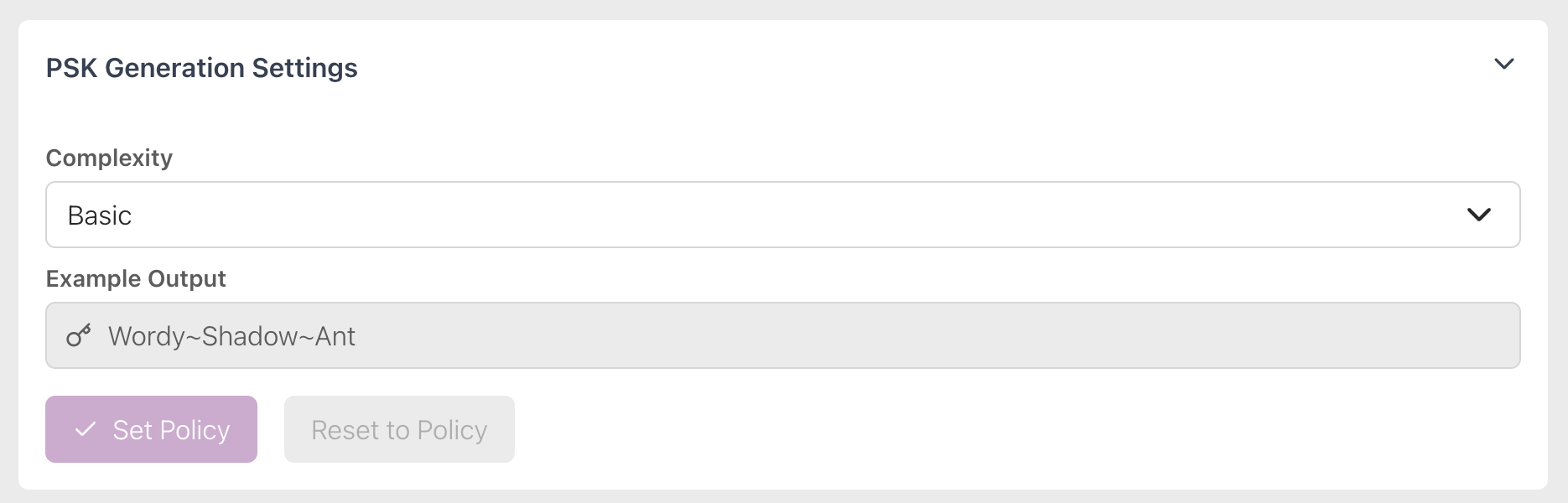
Edit the complexity of the office Wi-Fi passwords that are created for your network on the PSK Generation Settings dropdown. Set the complexity to Basic, Medium, or High. The higher the complexity, the more secure the Wi-Fi network is. After editing the complexity from the policy you set when signing up, click Set Policy to set this new policy or Reset to Policy to reset it to that initial complexity.
Which Role Should I Assign?
The features shown in My Properties depend on the staff member’s role.
Owner
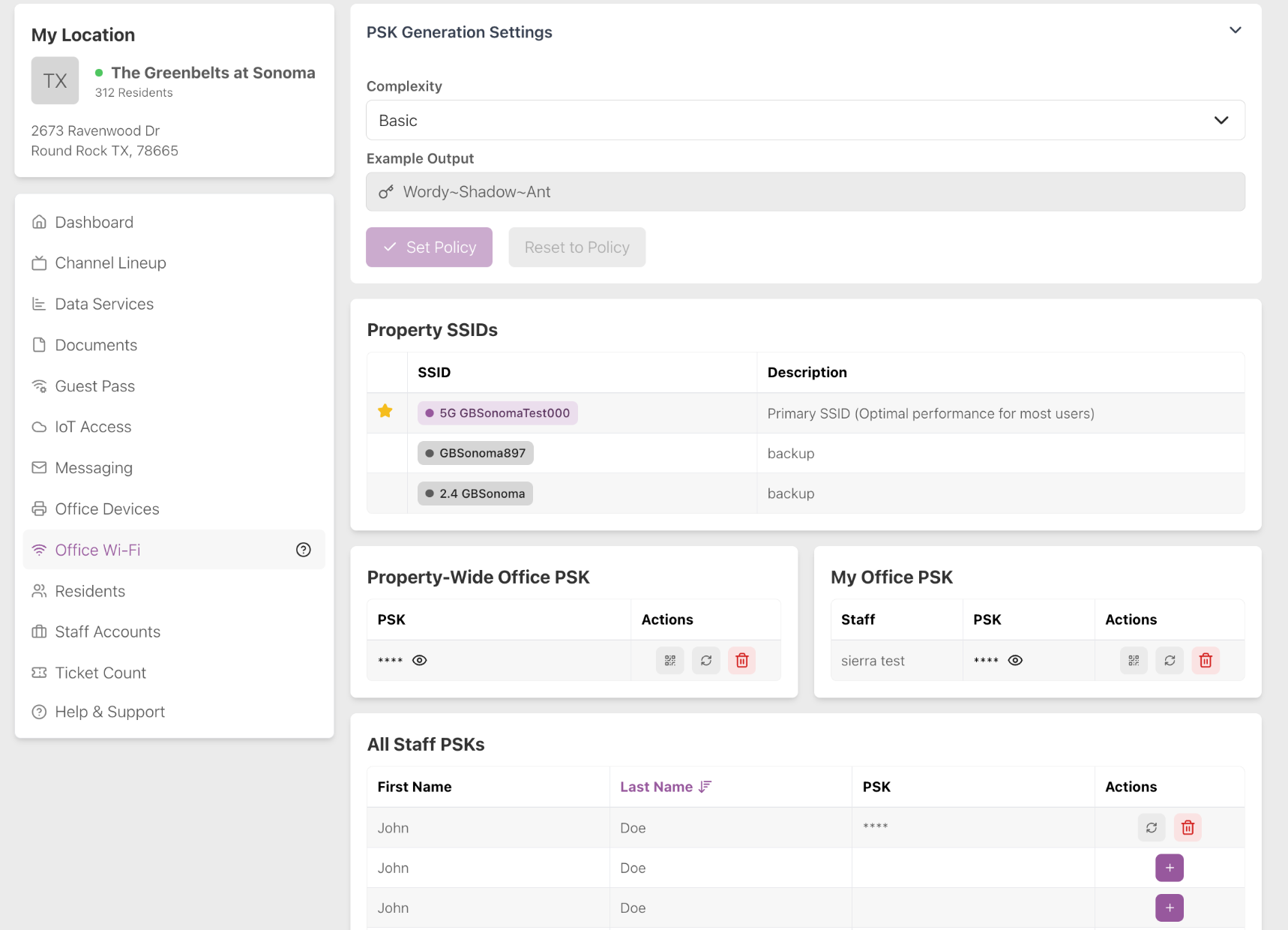
The owner of a property can see the Wi-Fi network Property SSIDs (network names), edit the PSK Generation Settings and see and create their My Office PSK, the Property-Wide Office PSK and All Staff PSKs. Note that a PSK is the same thing as a Wi-Fi password, just more secure.
Manager
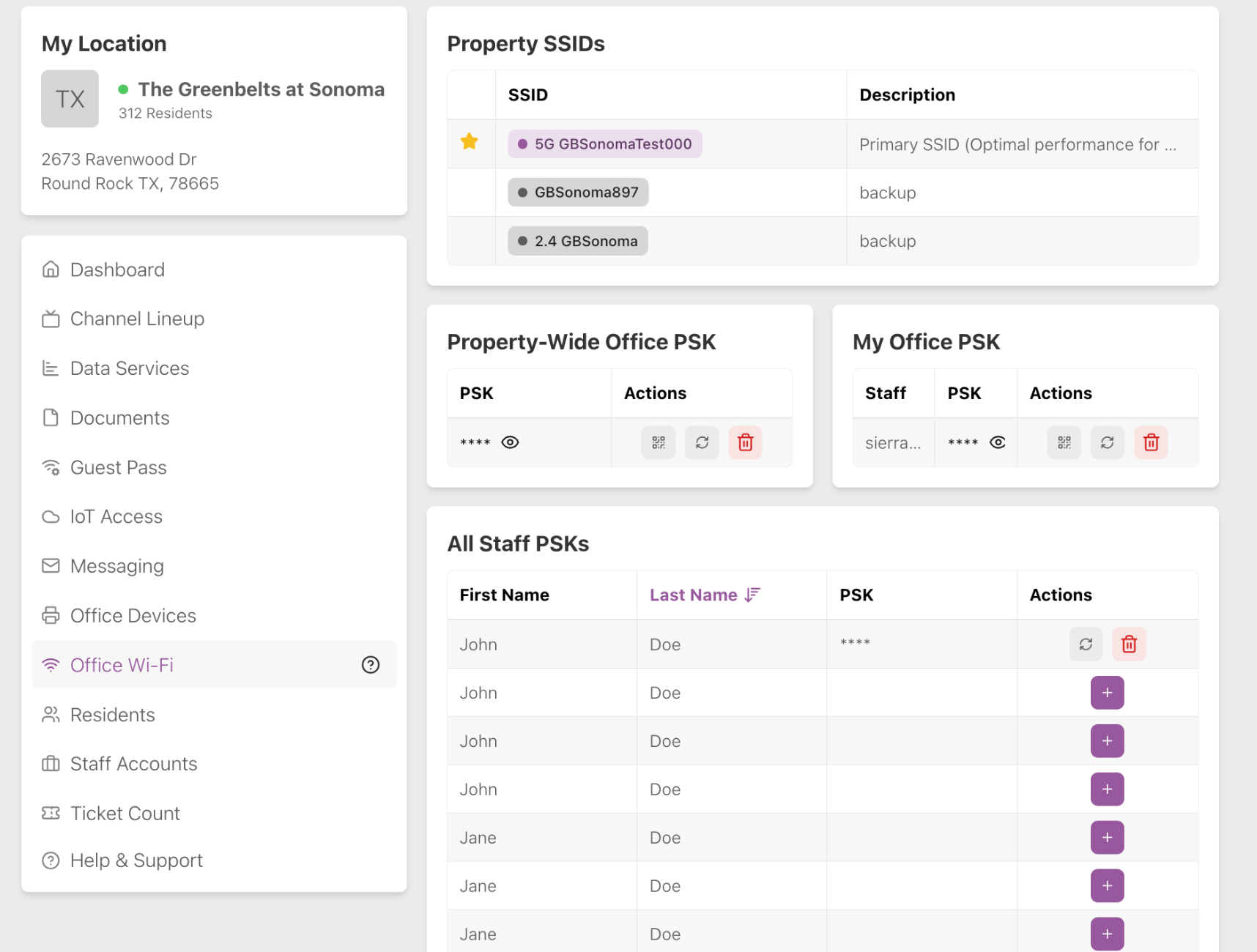
The manager of a property can see the Wi-Fi network Property SSIDs (network names) and see and create their My Office PSK, the Property-Wide Office PSK and All Staff PSKs.
Employee
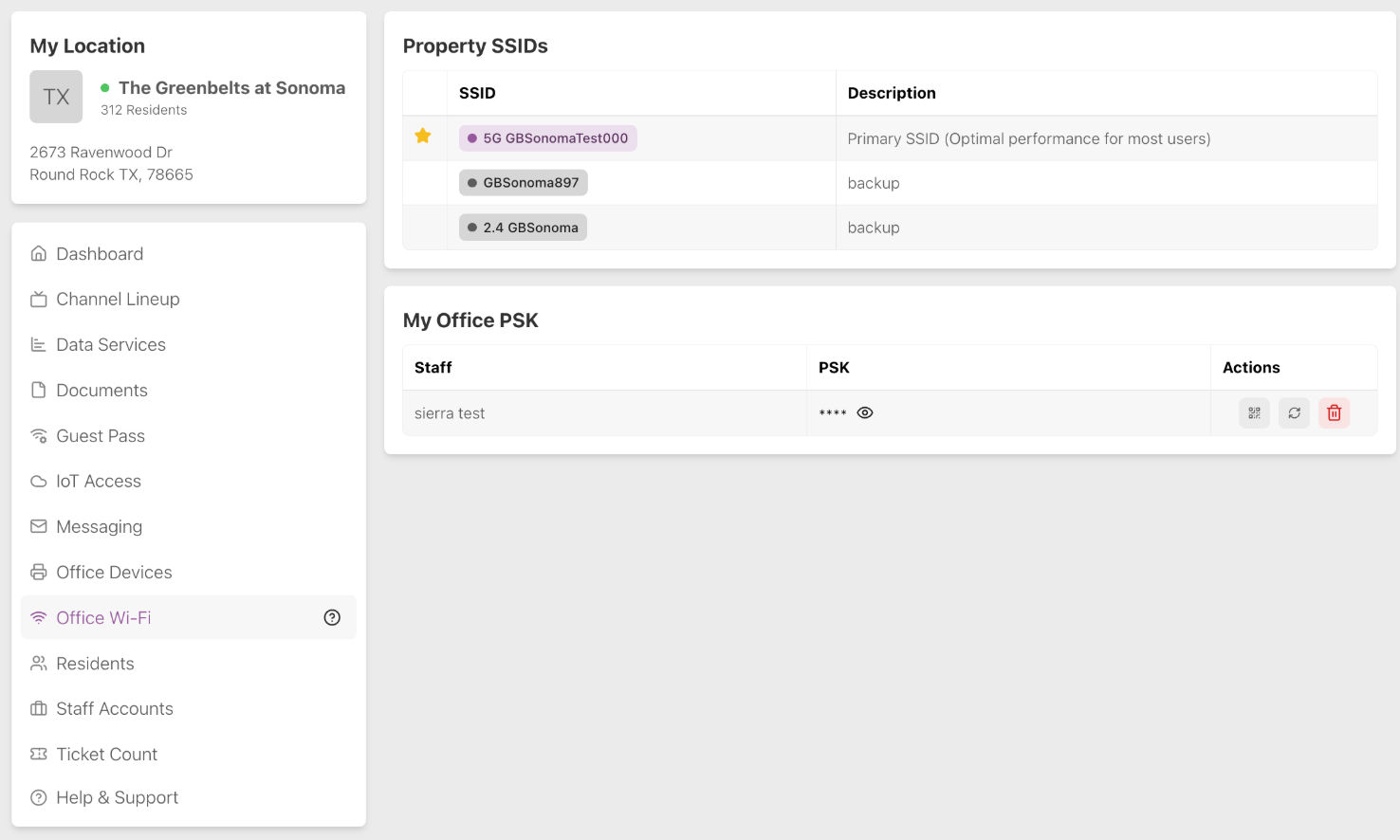
An employee of a property can only see My Office PSK.