Staff Accounts Page
Use Staff Accounts to create, delete, and view accounts for other members of your staff in My Properties.
View Staff Account Information
The Staff Accounts table lists the status of account activation (green showing activity), emails, name, and role of the staff, as well as the date that the invitation was sent.
Click the trash can icon to remove a staff member, which deletes their account in My Properties.
Add Staff Member
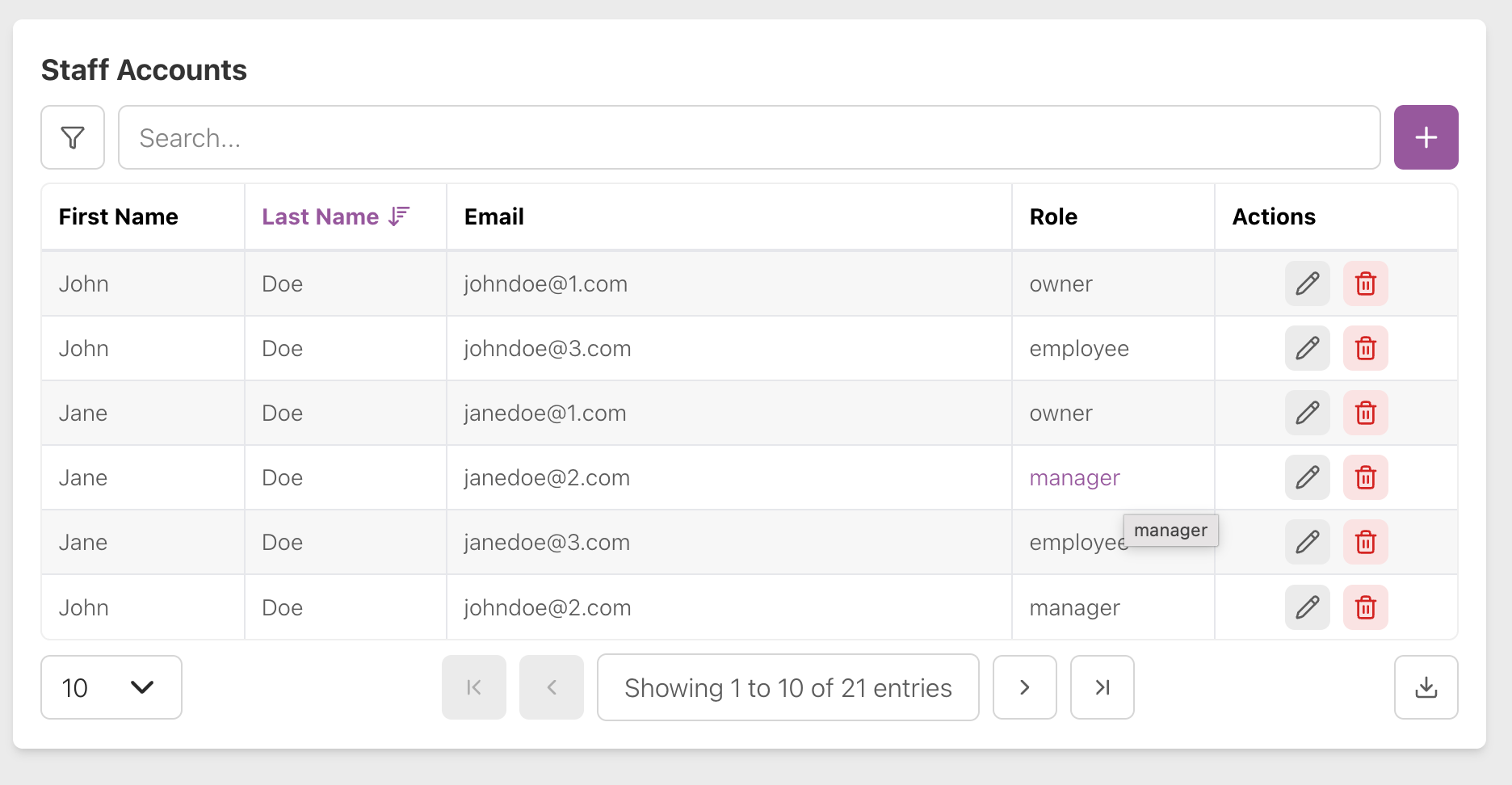
Click the plus (+) icon to add a new staff member to My Properties. Type their email address and name and choose the role you want to give them. They get an email inviting them to join My Properties and set their account password through the “Forgot Password” flow.
Edit Staff Member
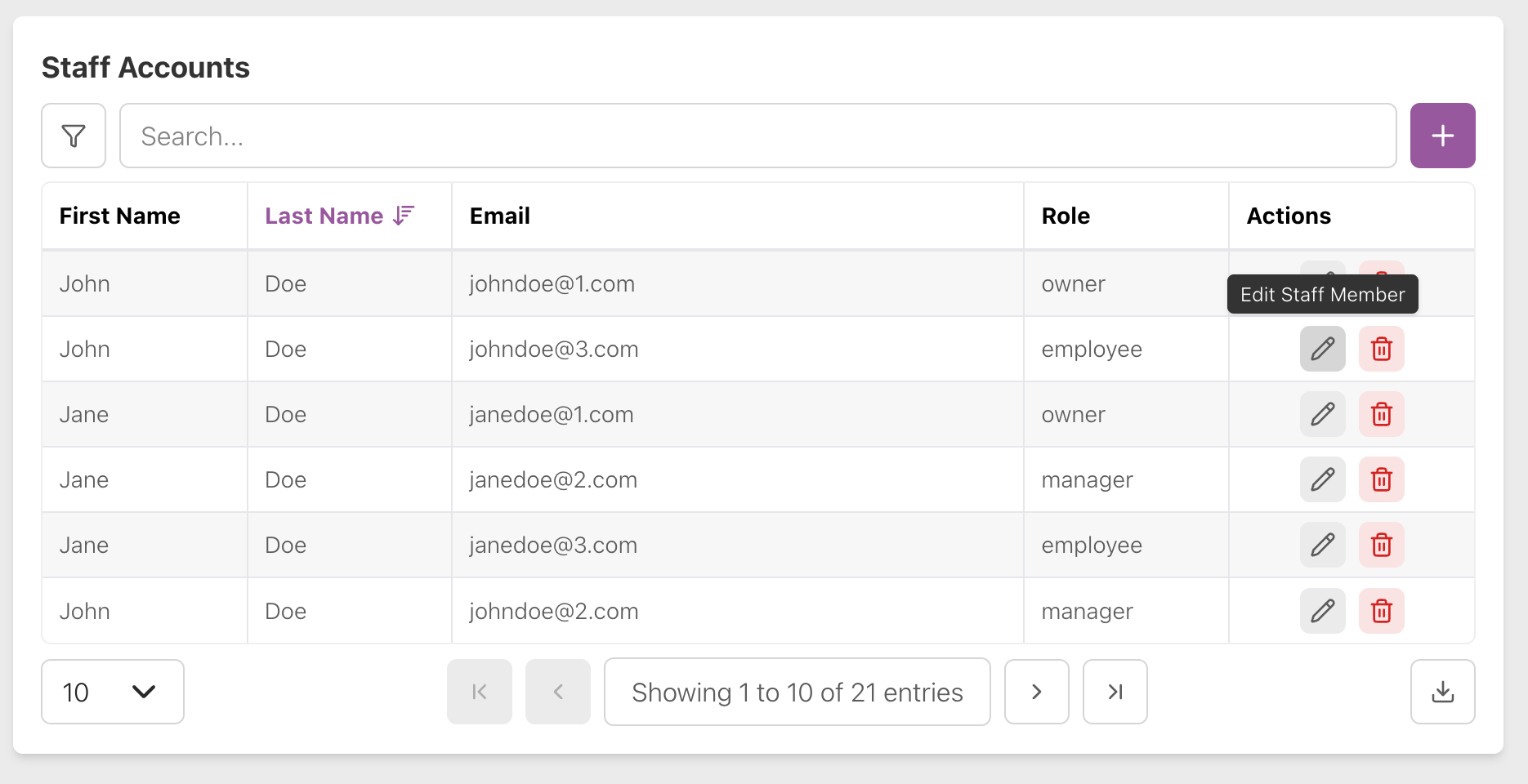
Click the pencil icon (Edit Staff Member) in the Actions menu of the Staff Accounts table to edit the role of a staff member. No other actions (editing email, name) are available here.
Remove Staff
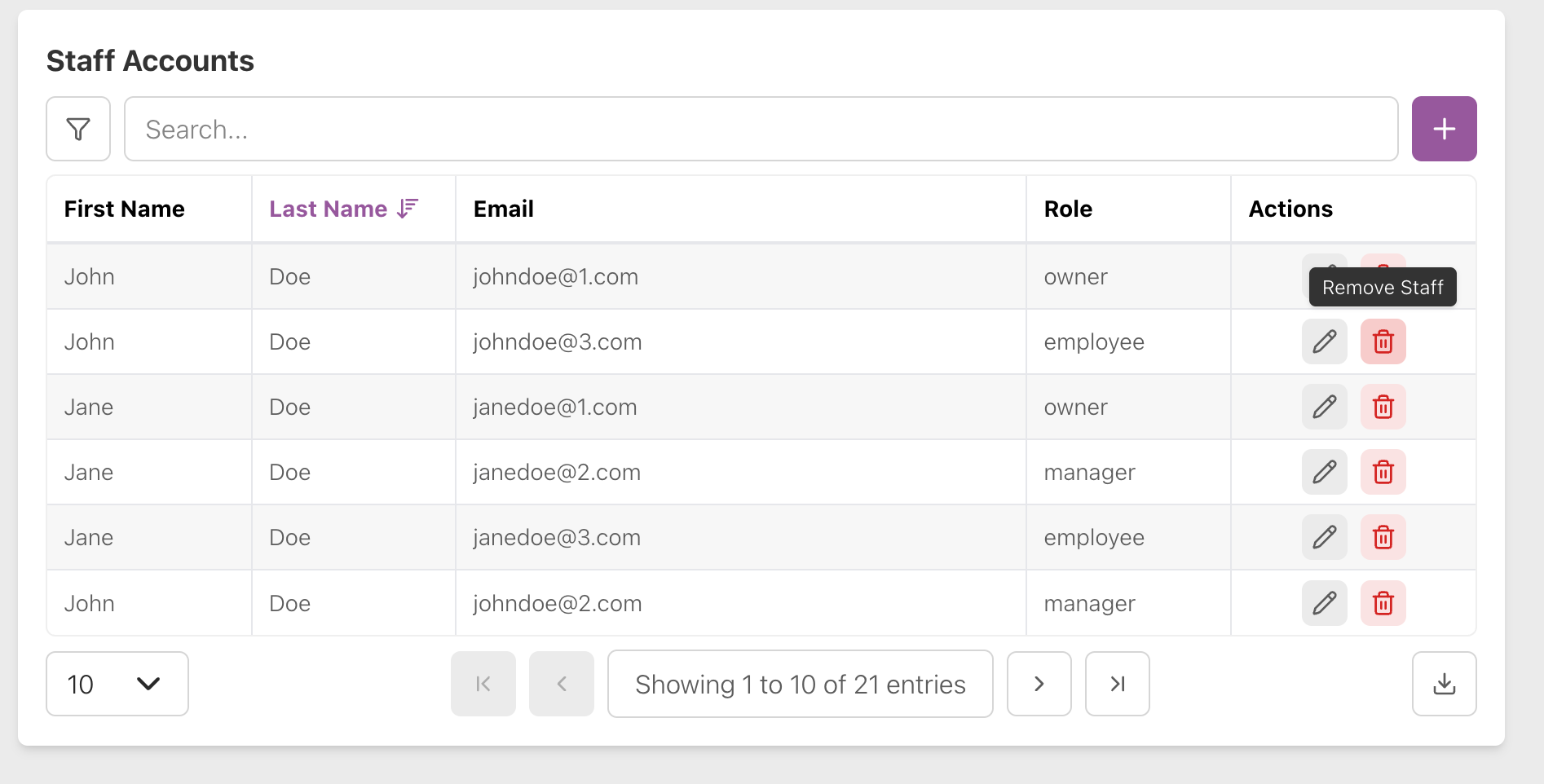
Click the trash can icon (Remove Staff) in the Actions menu of the Staff Accounts table to remove another staff member. This deletes their account in My Properties. This action is not available if your role is an employee.
Download CSV
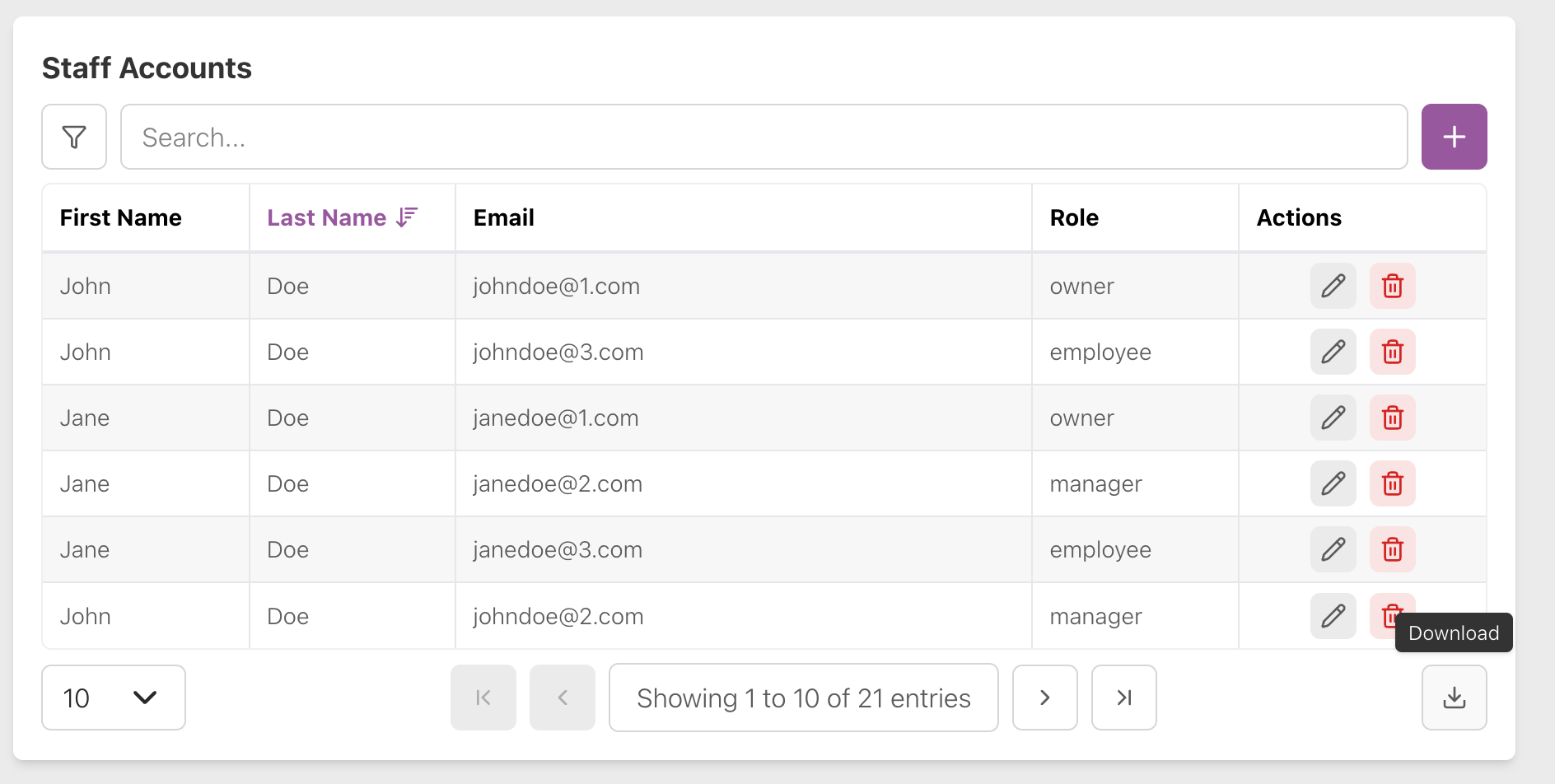
Click the save icon (Download) in the lower right hand corner of the Staff Accounts table to download a CSV containing staff account information.
Staff Account Roles and Permissions
Employees cannot add or remove other staff members or access and modify office passwords besides being able to see their own office password.
Managers can only add or remove employees as staff members, they cannot modify the access of managers.